
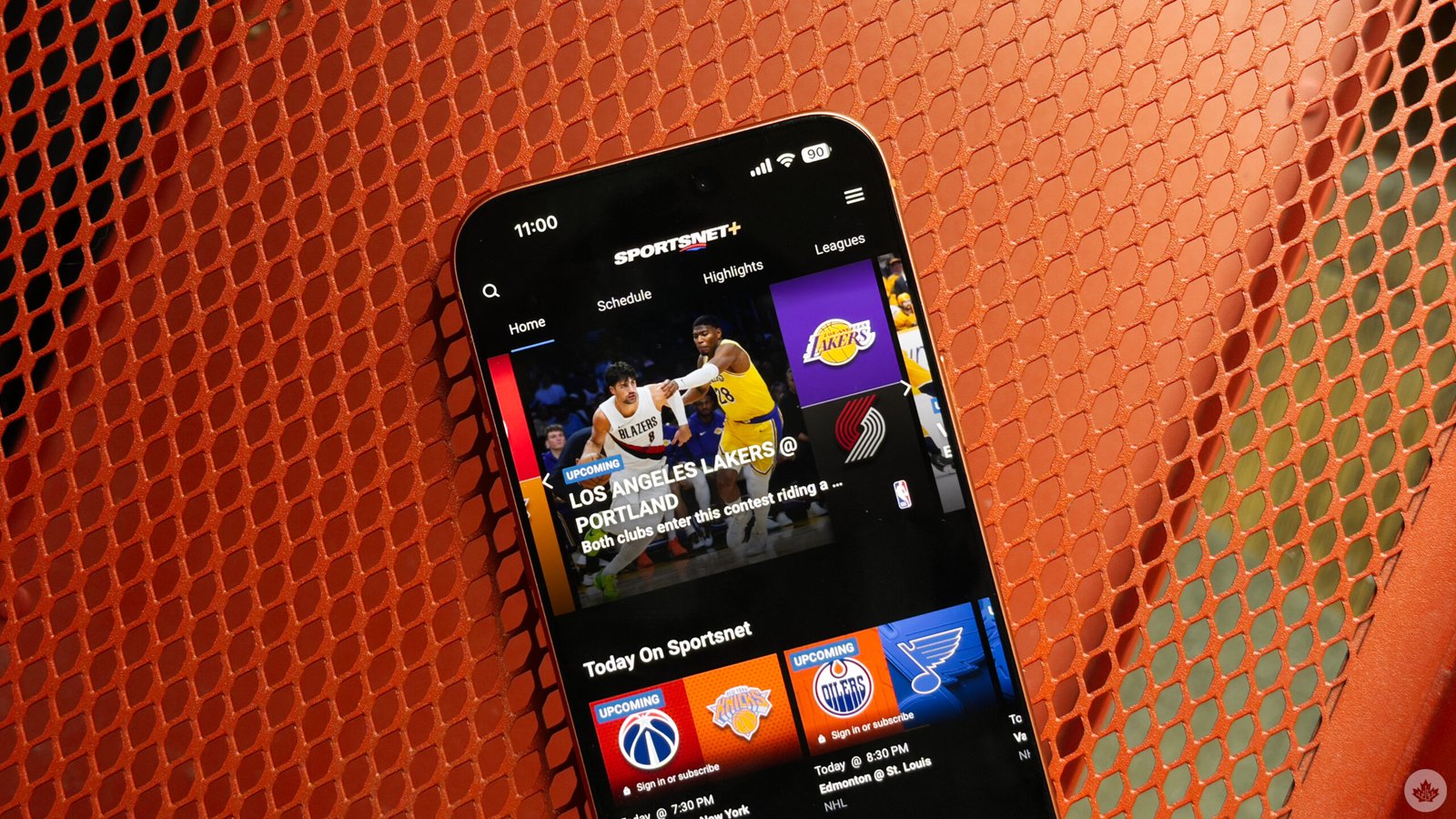
Baseball season is over, and if you don’t care about hockey or football, it’s probably best to cancel Sportsnet before you get hit with another charge. Here’s how to do it.
Cancel from Sportsnet’s website
To remove your subscription, you must log in to the desktop version of the Sportsnet+ website. From there, open the drop-down menu in the top right and open your account. Then navigate to the ‘Billing’ section to find the option to cancel.
Cancel via Amazon
Some fans might have decided to sign up through Amazon. If you fall into this group, you need to head over to the retailer’s website, open your account settings and choose the ‘Memberships and Subscriptions’ category.
Once in that section, you can find Sportsnet+, click on ‘Manage Subscriptions’ and select ‘Actions.’ Then you can turn off ‘Autorenewal.’ You can also follow these steps on the Amazon mobile app.
Most Canadians who cancel will still be able to use the service until their remaining sub runs out, but people in Quebec will lose access to the service instantly.
Cancel via Android/Google TV
If you signed up for the sports streamer on a Google TV or an Android phone, you’ll need to visit this website for a streamlined offboarding process.
Otherwise, you should open your Google account and choose ‘Payments & Subscriptions’ from the left-hand side menu. Once in there, you should see Sportsnet+ and an option to ‘Manage’ it.
Cancel via Apple
If you purchased the subscription on an Apple product, you may need to access your iPhone/iPad settings app, tap on your profile image at the top of the page, and then select ‘Subscriptions.’
If you’re on an Apple TV, you need to open the Settings app, select ‘Profile and Accounts’ and then your profile. Once you do, you can then scroll down to the ‘Subscriptions’ section to unsubscribe.
