Close Menu

    Subscribe to Updates

    Get the latest creative news from FooBar about art, design and business.

    What's Hot

    Invicto en 2026, Alcaraz aventaja ahora en más de 3.000 puntos a Sinner y ya piensa en los dos próximos torneos

    February 23, 2026

    Body Diversity Returns to the Runway as Wider Industry Heads Ultra-Thin

    February 23, 2026

    The best cheap Windows laptops for 2026

    February 23, 2026
    Facebook X (Twitter) Instagram
    Select Language
    Facebook X (Twitter) Instagram
    NEWS ON CLICK
    Subscribe
    Monday, February 23
    • Home
      • United States
      • Canada
      • Spain
      • Mexico
    • Top Countries
      • Canada
      • Mexico
      • Spain
      • United States
    • Politics
    • Business
    • Entertainment
    • Fashion
    • Health
    • Science
    • Sports
    • Travel
    NEWS ON CLICK
    Home»Science & Technology»US Science & Tech»How to use Magnifier on a MacBook to zoom in on faraway text
    US Science & Tech

    How to use Magnifier on a MacBook to zoom in on faraway text

    News DeskBy News DeskDecember 3, 2025No Comments4 Mins Read
    Share Facebook Twitter Pinterest Copy Link LinkedIn Tumblr Email VKontakte Telegram
    How to use Magnifier on a MacBook to zoom in on faraway text
    Share
    Facebook Twitter Pinterest Email Copy Link

    One of the iPhone’s many accessibility features is something Apple calls “Magnifier,” which uses the smartphone’s cameras to magnify and identify objects in the world around you. For Global Accessibility Awareness Day in May this year, Apple brought Magnifier to the Mac, opening up even more places the assistive tool can be used, like classroom or work environments where you might already have a MacBook pulled out.

    Magnifier requires macOS 26 Tahoe and can work with a built-in webcam, a connected third-party camera or an iPhone via Apple’s Continuity feature. Provided your MacBook can run Apple’s latest software update, it’s a natural fit for zooming in on a whiteboard at the back of a large lecture hall or getting a closer look at documents on a desk in front of you. You can use the app to both capture an individual image you want to refer to later, or to analyze text in a live video feed. But where to begin? Here’s how to set up and use Magnifier on your Mac.

    How to use Magnifier to identify and display text

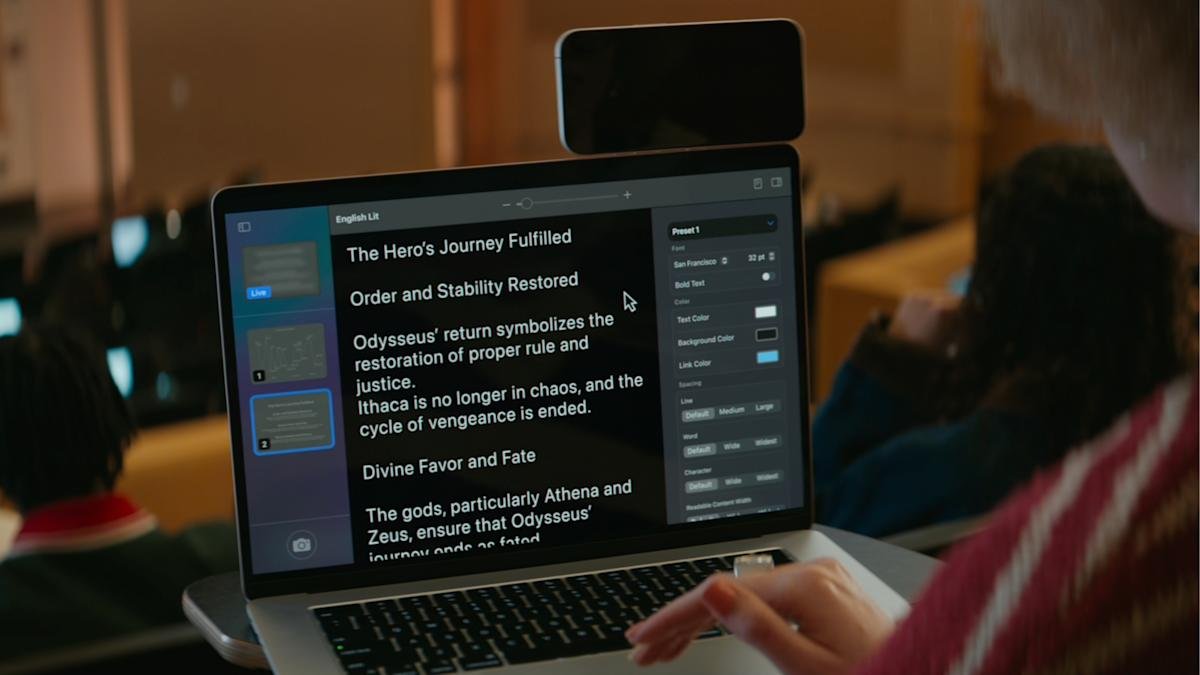
    A MacBook using Magnifier and a connected iPhone to identify and format text from a book. (Apple)

    Magnifier’s most powerful feature uses the MacBook’s machine learning capabilities to identify, display and format text that your camera captures. This works with text your camera can see in the room around you, and things it captures via macOS’ Desk View feature. For example, to view documents on your desk:

    1. Click on the Camera section in Magnifier’s menu bar and then select your Desk View camera from the dropdown menu.

    2. Click on the Reader icon (a simple illustration of a document) near the top-right of your Magnifier window.

    3. Click on the sidebar menu icon to access settings to format text.

    Apple gives you options to change the color, font and background of text Magnifier identifies, among other customization options. If you’d prefer to capture faraway text, you can position a webcam or iPhone camera facing away from you and swap to it via the Camera section in Magnifier’s menu bar.

    You can also listen to any text Magnifier has identified by clicking on the Play button in the top-right corner of Magnifier’s reader mode. Clicking the Pause button will pause playback, clicking the Skip Forward or Skip Backward buttons skip through lines of text, and if you want to adjust playback speed, you can click on the 1x button and pick a speed from the dropdown menu.

    How to use Magnifier to zoom in on yourself

    A screenshot of the macOS Magnifier app zoomed in on a face.

    Magnifier can identify text, but it also works as a way to get a zoomed in view of your own face. (Ian Carlos Campbell for Engadget)

    By default, Magnifier uses your MacBook’s built-in webcam, which means you’ll see a view of yourself and whatever’s behind you if you don’t have another camera selected. This might not be usual for seeing faraway text, but it is handy if you’re applying makeup, putting in contacts or doing anything else where you need a detailed view of your face.

    In my tests, using Magnifier worked the best with my MacBook’s built-in webcam or an iPhone. When I tried using a third-party webcam from Logitech, my live camera feed was noticeably laggy. Your mileage may vary, but if you experience any issues with your own webcam, it’s worth trying your built-in webcam to see if that helps. You can swap between cameras and zoom in to your camera feed inside the Magnifier app:

    1. In the top menu bar, select Camera and then click on the camera you’d like to use in the dropdown menu.

    2. Use the slider in the top center of the Magnifier window to zoom in on yourself.

    You can see a live feed of your zoomed in view in Magnifier’s main window. If you click on the Camera button in the bottom-left corner of the app, you can also snap a photo to review later. Any photos you capture will appear in Magnifier’s left sidebar menu. Clicking on them lets you view them, zoom in on them and adjust their visual appearance (Brightness, Contrast and other visual settings) via the Image section in Magnifier’s menu bar.

    Apple format text MacBook Magnifier Magnifier app text text Magnifier
    Share. Facebook Twitter Pinterest LinkedIn Tumblr Email Telegram Copy Link
    News Desk
    • Website

    News Desk is the dedicated editorial force behind News On Click. Comprised of experienced journalists, writers, and editors, our team is united by a shared passion for delivering high-quality, credible news to a global audience.

    Related Posts

    US Science & Tech

    The best cheap Windows laptops for 2026

    February 23, 2026
    US Science & Tech

    Wispr Flow launches an Android app for AI-powered dictation

    February 23, 2026
    US Science & Tech

    The best earbuds for Android devices in 2026

    February 23, 2026
    US Science & Tech

    NASA’s crewed Artemis II launch gets pushed back again, this time due to a helium issue

    February 22, 2026
    US Science & Tech

    Apple might take a new approach to announcing its next products

    February 22, 2026
    US Science & Tech

    Can the creator economy stay afloat in a flood of AI slop?

    February 22, 2026
    Add A Comment
    Leave A Reply Cancel Reply

    Don't Miss

    Invicto en 2026, Alcaraz aventaja ahora en más de 3.000 puntos a Sinner y ya piensa en los dos próximos torneos

    News DeskFebruary 23, 20260

    El tenista murciano Carlos Alcaraz ha vuelto a demostrar que su ambición no conoce límites…

    Body Diversity Returns to the Runway as Wider Industry Heads Ultra-Thin

    February 23, 2026

    The best cheap Windows laptops for 2026

    February 23, 2026

    Harry Kane responds to transfer interest from Barcelona

    February 23, 2026
    Tech news by Newsonclick.com
    Top Posts

    The best cheap Windows laptops for 2026

    February 23, 2026

    The Roads Not Taken – Movie Reviews. TV Coverage. Trailers. Film Festivals.

    September 12, 2025

    Huey Lewis & The News, Heart And Soul

    September 12, 2025

    FNE Oscar Watch 2026: Croatia Selects Fiume o morte! as Oscar Bid

    September 12, 2025
    Stay In Touch
    • Facebook
    • Twitter
    • Pinterest
    • Instagram
    • YouTube
    • Vimeo

    Subscribe to Updates

    Get the latest creative news from SmartMag about art & design.

    Editors Picks

    Invicto en 2026, Alcaraz aventaja ahora en más de 3.000 puntos a Sinner y ya piensa en los dos próximos torneos

    February 23, 2026

    Body Diversity Returns to the Runway as Wider Industry Heads Ultra-Thin

    February 23, 2026

    The best cheap Windows laptops for 2026

    February 23, 2026

    Harry Kane responds to transfer interest from Barcelona

    February 23, 2026
    About Us

    NewsOnClick.com is your reliable source for timely and accurate news. We are committed to delivering unbiased reporting across politics, sports, entertainment, technology, and more. Our mission is to keep you informed with credible, fact-checked content you can trust.

    We're social. Connect with us:

    Facebook X (Twitter) Instagram Pinterest YouTube
    Latest Posts

    Invicto en 2026, Alcaraz aventaja ahora en más de 3.000 puntos a Sinner y ya piensa en los dos próximos torneos

    February 23, 2026

    Body Diversity Returns to the Runway as Wider Industry Heads Ultra-Thin

    February 23, 2026

    The best cheap Windows laptops for 2026

    February 23, 2026

    Subscribe to Updates

    Get the latest creative news from FooBar about art, design and business.

    Facebook X (Twitter) Instagram Pinterest
    • About Us
    • Editorial Policy
    • Privacy Policy
    • Terms and Conditions
    • Disclaimer
    • Advertise
    • Contact Us
    © 2026 Newsonclick.com || Designed & Powered by ❤️ Trustmomentum.com.

    Type above and press Enter to search. Press Esc to cancel.