
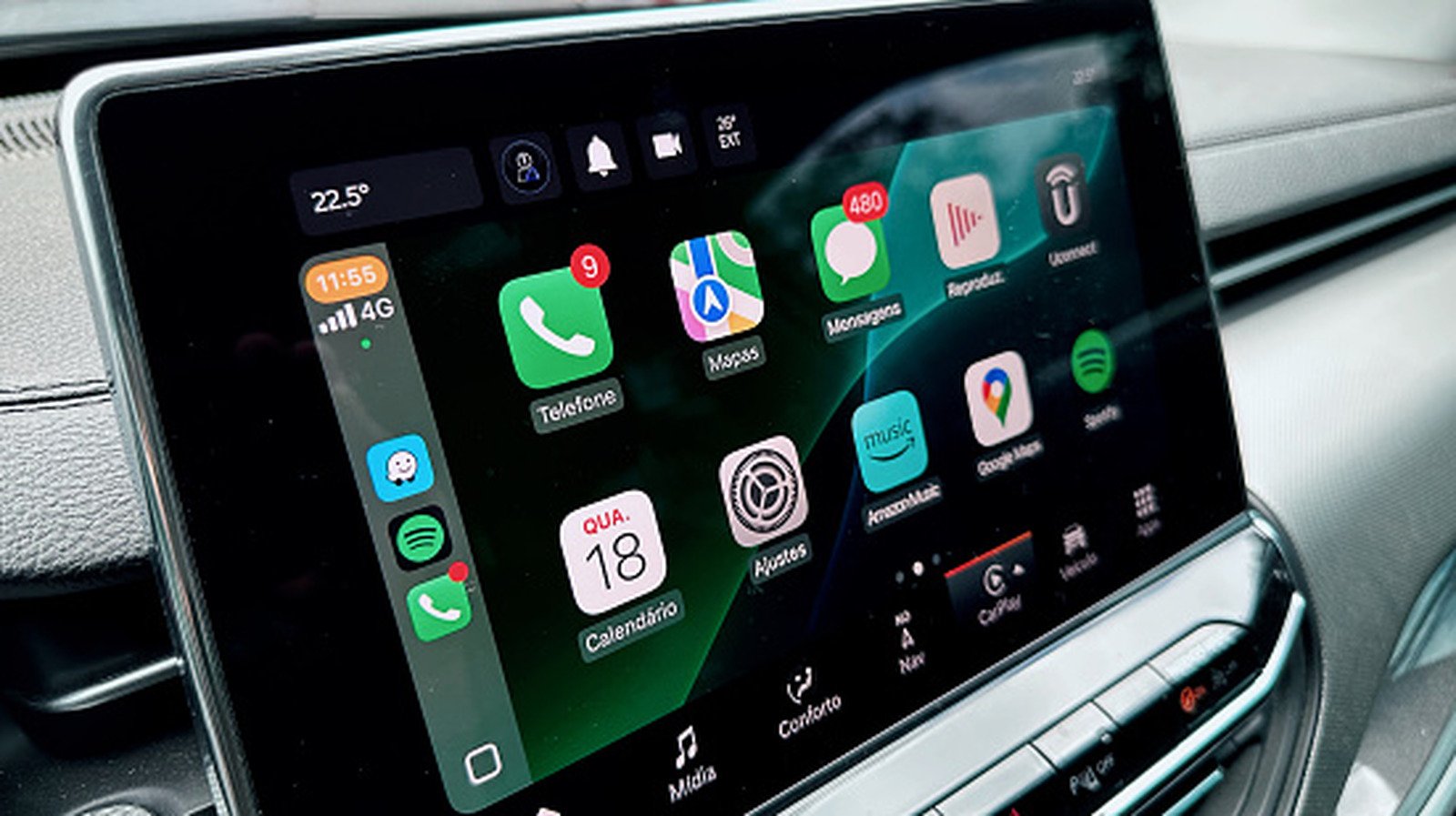
A quick, reliable guide for diagnosing the most common CarPlay connection failures.
Like most features on your iPhone, CarPlay should be straightforward to use once you get it set up. Unfortunately, as with any tech, problems can arise that stop CarPlay from functioning properly. After you get used to the conveniences of Apple’s auto software, you can feel stuck in the past when you have to use your phone’s display for music and maps instead. And that doesn’t even take the safety concerns into account.
Perhaps you can’t get CarPlay to work for the first time, it’s stopped working after a period of normal use, or it suddenly keeps disconnecting. These problems often have the same root causes, so running through some troubleshooting should clear them up. Unless the issue ends up being the cable you use for CarPlay, you won’t have to spend any cash, either.
One don’t have to be an automotive technician or an iPhone expert to apply these fixes, so even novice users should be back to enjoying their favorite music and navigation streamed through the car’s display before long.
Start with simple CarPlay troubleshooting steps
It’s always wise to check simple points before you spend time on advanced troubleshooting. Begin by restarting your phone, then shut your car off and start it back up. This makes sure that no temporary hiccups are preventing a good connection. Depending on your car, CarPlay might not open automatically when you connect your iPhone. Look for it on your car’s default infotainment screen and tap to open it.
If this is the first time you’ve tried to use CarPlay, double-check Apple’s CarPlay vehicle list to confirm your car is compatible with the feature. Every iPhone from the iPhone 5 works with CarPlay, so unless you’re using an iPhone 4s or older, device compatibility isn’t the issue. Apple also publishes a list of countries where CarPlay works, but as long as your car (or aftermarket stereo) supports it, it shouldn’t matter where you’re located.
Also, make sure Siri is enabled on your iPhone, since this is required for CarPlay to work. Start by heading to Settings > Apple Intelligence & Siri (or just Siri if your phone doesn’t support Apple Intelligence). There, tap Talk to Siri (or Talk & Type to Siri with Apple Intelligence enabled). Make sure the top option isn’t set to Off, and enable the Press Side Button for Siri slider if it’s disabled. Finally, update your iPhone to the latest version of iOS. While CarPlay doesn’t require the latest iOS to work, software updates can fix temporary issues that might cause your issue.
Allow CarPlay while your phone is locked
By default, after you connect your iPhone to your car, you have to unlock your phone once per drive for the two to communicate. This is an annoying step to take every time you start a trip, and when the icon doesn’t appear on your car’s display, you might think CarPlay isn’t working when it’s really just locked. If you don’t want to deal with this step every time, there’s an easy fix.
Open Settings on your iPhone, then go to General > CarPlay. Tap your vehicle’s name, then enable the Allow CarPlay While Locked slider (if it’s not already). Now, you don’t have to use Face ID or your PIN to let CarPlay start talking to your phone; it will show up as soon as you connect it with a cable or wirelessly.
With this setting enabled, someone who had access to your phone and car could use CarPlay to make calls, send messages, and access other data on your device without having your passcode. In most cases, it’s fine to leave it enabled for your own vehicle, but consider disabling it when you’re driving a car that’s not yours.
Troubleshoot the cable or wireless connection
If you use CarPlay with a USB cable, try connecting to another USB port on your car (if there is one). In case there are multiple, it’s worth checking your car manual to see whether one is meant for CarPlay/Android Auto usage. Next, try a fresh USB cable. I’ve had to replace the USB cable I use for CarPlay several times; between the extreme temperatures inside a vehicle and getting twisted, they don’t last forever.
Similarly, if you have to put your cable in a perfect position to keep the CarPlay connection stable, it’s time for a replacement. When you do, make sure to use a cable marked for data transfer, not just charging. Unlike the best iPhone accessories, cheap cables often don’t have the capability to move data and won’t work with CarPlay. Avoid using adapters with CarPlay; a direct connection is more likely to work. When you replace the cable, check for dust in the USB ports of your phone and car, and gently clean out any buildup you see.
If you connect to CarPlay wirelessly (perhaps using a third-party adapter), open Settings on your phone and make sure you have Bluetooth and Wi-Fi enabled, as wireless CarPlay connections rely on both. In the Wi-Fi menu, tap the i icon next to your car’s name and make sure Auto-join is enabled so you don’t have to manually connect every time.
Confirm CarPlay isn’t disabled
The parental controls on your phone can block certain features from functioning entirely. If CarPlay still won’t work at this point, head back into Settings and browse to Screen Time > Content & Privacy Restrictions. If you’ve set up a passcode to lock Screen Time restrictions, you’ll need to enter it here.
If the restrictions slider is enabled, choose Allowed Apps & Features and make sure the slider for CarPlay is green (meaning it’s enabled). If that slider was already off, this isn’t your issue.
Similarly, in your car’s settings, look around the options menu for a Connections or Devices section. There, check to see if CarPlay is disabled or your phone is disconnected. This will depend on your car, but it’s worth double-checking in case the problem is buried in its menus. Take a look at your vehicle’s manual to see what options apply.
Re-pair your car and phone
Moving on, you should remove the CarPlay connection between the two devices and set it up again. To do this, go back to Settings > General > CarPlay on your iPhone and select your vehicle. Before resetting, screenshot your app layout and widgets so you can easily set them up after the reset. Tap Apps and screenshot as needed, then repeat for Widgets. This will also reset the options available in CarPlay’s Settings panel, but you can’t check those if CarPlay isn’t working.
Once ready, choose Forget This Car. If you’re able to update the firmware on your car’s stereo unit, try doing so. Then you’ll need to pair your phone again. For a wired connection, connect a high-quality USB cable to your phone and your car’s USB port. If your car supports wireless CarPlay, open the device pairing menu on your car’s display (which you can often do by holding the voice command button on the steering wheel). On your phone, go to Settings > General > CarPlay and select your car when it appears.
If you see the CarPlay logo on your vehicle’s display after re-pairing, you should be in the clear. Tap it, walk through the initial setup steps again, then customize CarPlay the way you had it before—be sure to install some of the best free CarPlay apps, like SpotHero and TuneIn. If all else fails, you can try factory resetting your head unit. This should be a last resort, since you’ll lose all existing settings. See if your car allows exporting your configuration to a USB drive; if not, you can take photos of each option so you remember how everything was configured. Should the reset fail to get CarPlay working, it’s time to contact your car manufacturer and/or Apple.
